Accessibility in Web Design: How to Build Beautiful Sites That Everyone Can Use
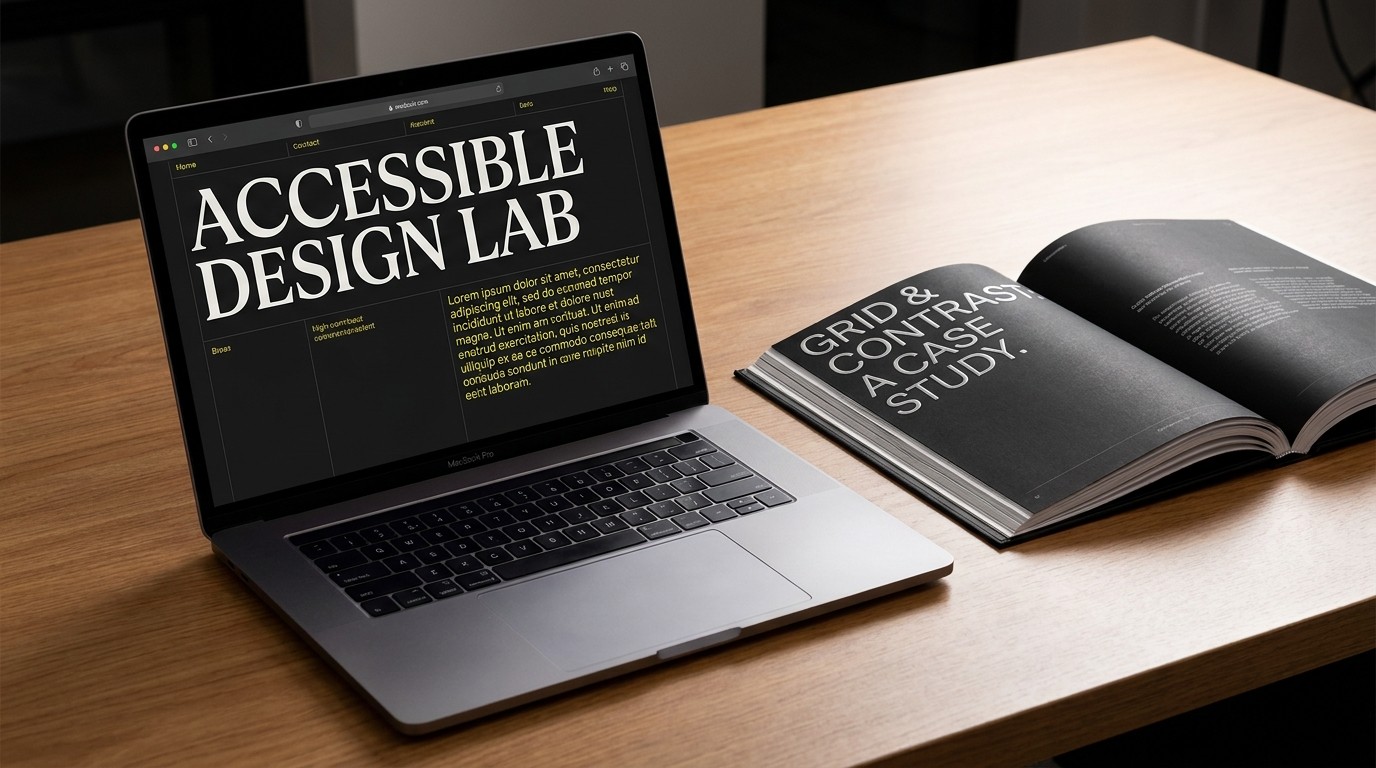
Accessibility in Web Design: How to Build Beautiful Sites That Everyone Can Use
For a long time, there was a persistent myth in the web design world: making a site accessible meant sacrificing aesthetics. Designers often feared that adhering to the Web Content Accessibility Guidelines (WCAG) would force them into using clunky layouts, giant text, and boring color palettes.
The reality? Good accessibility is just good design.
When you design with accessibility in mind, you aren't just helping users with disabilities—you're creating a smoother, more intuitive, and highly functional experience for everyone. A high-contrast button doesn't just help someone with low vision; it helps a user trying to read your site outside in the glaring sun.
Here is a look at how visual contrast impacts readability across both grayscale and full-color designs:
The Low-Hanging Fruit: Color Contrast
If there is one place to start your accessibility journey, it is color contrast.
The WCAG requires a contrast ratio of at least 4.5:1 for standard text and 3:1 for large text (like your headers). This ensures that users with visual impairments, including color blindness, can actually read your content without eye strain.
Instead of guessing if your brand colors pass the test, use this interactive calculator to see how foreground and background combinations affect readability scores in real-time:
Key insight: Don't rely on color alone to convey meaning. If a form field turns red to indicate an error, make sure there is also a text label or an icon (like an "X") explaining the issue.
Structure is Invisible Design
Beautiful design isn't just visual; it's structural. Semantic HTML is the backbone of an accessible web.
When you use the correct HTML tags (<header>, <nav>, <main>, <article>, <footer>), you are doing two critical things:
Helping Search Engines: SEO improves because crawlers understand the hierarchy of your content.
Guiding Screen Readers: Users who rely on assistive technologies can navigate your site logically, skipping straight to the main content or seamlessly tabbing through a navigation menu.
Best Practices for Structure:
Logical Heading Hierarchy: Never skip heading levels (e.g., jumping from an
<h2>to an<h4>). Think of your headings as a table of contents.Descriptive Alt Text: Every meaningful image needs
alttext that describes the image's function or content. If the image is purely decorative, use an empty alt attribute (alt="") so screen readers ignore it.Keyboard Navigability: Unplug your mouse and try to navigate your site using only the
Tab,Enter, and arrow keys. If you get trapped in a menu or can't tell which button is focused, your site isn't accessible.
Form Follows Function
Interactive elements—like forms, modals, and buttons—are where beautiful designs often fail accessibility tests. A minimalist form with disappearing placeholder text might look sleek, but it creates immense cognitive load.
Always keep labels visible outside of form fields. If you are using custom UI components (like a bespoke dropdown or a slider), make sure you are implementing ARIA (Accessible Rich Internet Applications) attributes to communicate the element's role and state to assistive devices.